Rendering
The tool builds your character's materials specifically for Karma XPU, Houdini's GPU-accelerated production renderer. This page covers getting your character on screen, plus the optional one-click render setup.
Rendering with Karma XPU
Your shaded character lives in Solaris (the /stage context). To see it rendered:
- Click Go to LOPs on the Reallusion Importer node to jump to the LOP network.
- Set your viewport to use the Karma renderer.
- You'll need a camera and some lights for a proper render — the tool can build these for you (see below).
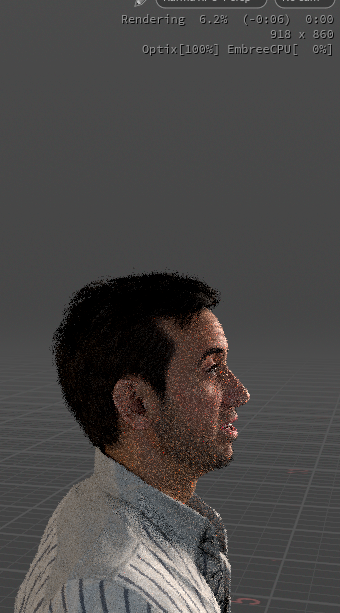
Works on both Karma XPU and Karma CPU
The materials are built and tuned for Karma XPU, the recommended renderer for the look and speed they were designed around — but they also render correctly in Karma CPU, so you're covered if your setup favours CPU.
Motion blur
The tool computes a velocity attribute on the character's geometry, so motion blur works automatically on animated characters in Karma — fast movement renders with natural blur instead of looking strobed or unnaturally crisp. Just enable motion blur in your Karma render settings as usual; the character's motion is picked up with no extra setup.
Optional one-click render setup
If you want a lighting and camera rig set up automatically, the tool can build one for you. When enabled, building a character also creates:
- A camera, framed on the character.
- A three-point light rig — key, fill, and rim lights — the standard setup for flattering character lighting.
- A Karma render settings node, configured and ready.
This setup chains after the lookdev controller, so it picks up your character automatically — the fastest way from import to a good-looking render.
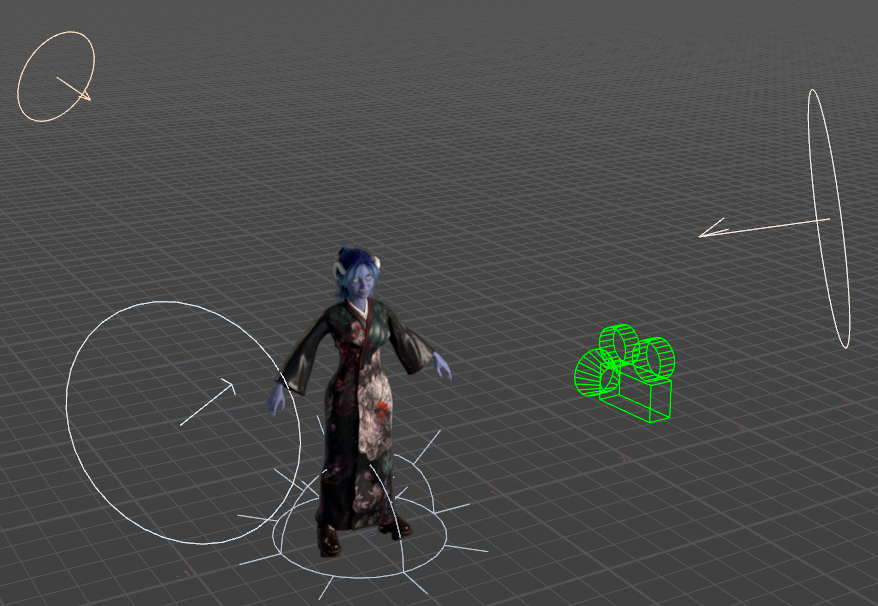
Once the rig is built, the Light Setup control in the Quality folder on the lookdev controller switches between two pre-tuned looks — Cinematic (warm, moody key light) and Neutral (flat, even lighting) — without touching the nodes themselves.
The auto-built rig is a great starting point. Move the lights, adjust intensities, or swap the camera for your own — it's all standard Houdini nodes you can edit freely.
Performance while look-developing
Rendering skin with subsurface scattering and refractive eyes is expensive. While setting up shots and dialing in looks, use the Quality ▸ Preview preset (see The Lookdev Controller) to turn off the costly effects and keep the viewport responsive. Switch to Production for final renders.
See Performance & Caching for more on keeping things fast and managing memory.
A note on render properties
A few controls — SSS Quality and the eye-light controls — are Karma render properties. Karma reads these only when a render starts, so changing them requires restarting your Karma render to take effect. Every other control updates live. The controls that behave this way are noted on their pages and in their tooltips.