Requirements & Installation
Requirements
Before you start, make sure you have:
- Houdini 21.0 or newer. The tool uses features introduced in Houdini 21 and isn't compatible with earlier versions.
- Houdini Indie, Core, or FX. The tool ships as a limited-commercial (Indie) Houdini Digital Asset. See the license note below.
- Windows. The tool was developed and tested on Windows. It may work on macOS or Linux, but those platforms are untested — use them at your own risk.
- A Character Creator / iClone character, exported as FBX. Designed for Character Creator 5 / iClone 8, and should work with all CC3+ base meshes. See Preparing Your Character.
- Karma for rendering (included with Houdini). The materials are tuned for Karma XPU and also render in Karma CPU.
About the Indie license format
This asset is a black-boxed, limited-commercial Digital Asset (.hdalc). It works in Houdini Indie, and it can also be loaded in Houdini Core/FX — but doing so will temporarily switch that session into limited-commercial mode, per SideFX's licensing rules. If you work in a commercial studio pipeline, be aware of this before using the tool. You are responsible for your own compliance with SideFX licensing.
Installation
Installing the tool is just a matter of putting one file where Houdini can find it.
otls folder
Houdini automatically loads Digital Assets from an otls folder in your user preferences directory. On Windows, that's typically:
C:\Users\<YourName>\Documents\houdini21.0\otls\If the otls folder doesn't exist yet, create it.
Copy the downloaded .hdalc file (for example, JV-Reallusion_Importer-v1.2.hdalc) into that otls folder.
If Houdini was already running, restart it so it picks up the new asset. That's it — the tool is now installed.
To confirm it loaded:
- Create a Geometry object (or dive into an existing one).
- Press Tab to open the node menu and type Reallusion.
- You should see Reallusion Importer in the list.
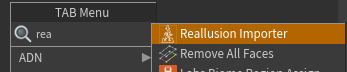
If it appears, you're ready to go. Head to the Quick Start.
Alternative: load without installing
If you'd rather not install it permanently, you can load the asset for a single session:
- Go to Assets ▸ Install Digital Asset Library in the main menu.
- Browse to the
.hdalcfile and select it.
The node will be available until you close Houdini. To make it permanent, use the otls folder method above.
Updating
When a new version is released, copy the new .hdalc into your otls folder, delete the previous version's file (the filename carries the version, e.g. JV-Reallusion_Importer-v1.2.hdalc), and restart Houdini. Your existing scenes will pick up the new version automatically — no scene changes needed.
Because the tool stores all your look settings on a controller node inside your scene (not inside the asset), updating the asset won't lose your dialed-in looks on existing characters.
